
Published October 9, 2026
How to Use the Veto App: Setup Guide From Install to First Scan
Step-by-step Veto setup: install the app, get your free VirusTotal API key, run your first file, link, and app scans, and read the results.
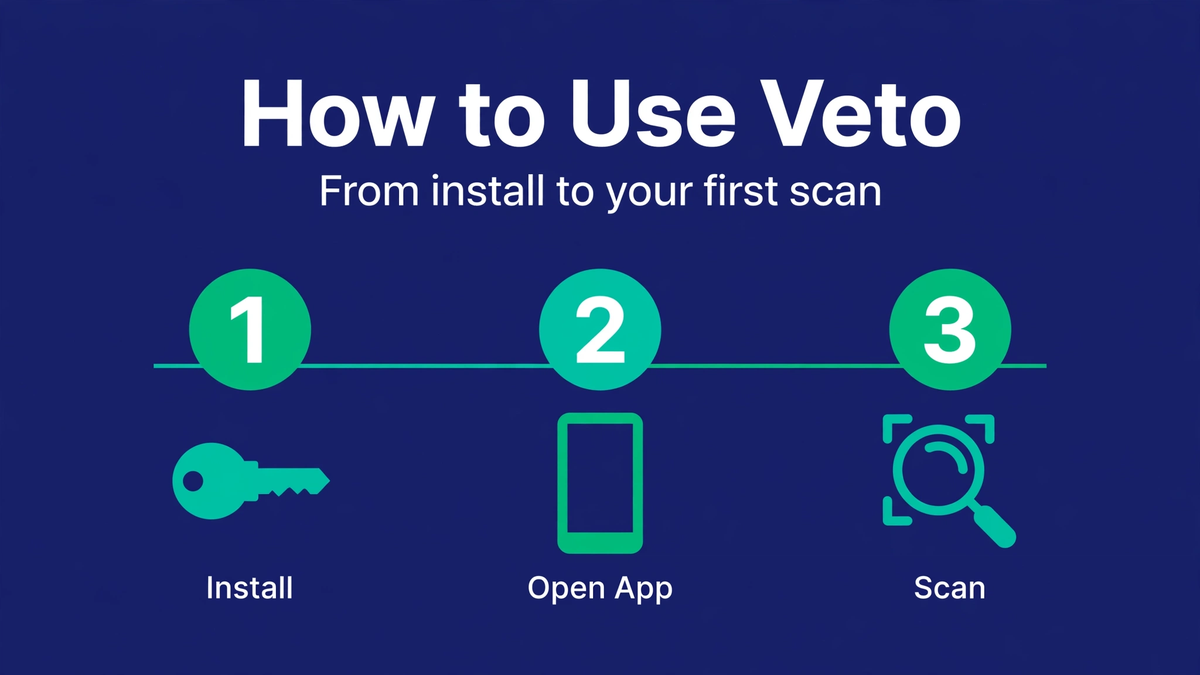
Getting Veto working takes about five minutes. The only part that trips people up is the API key — and that's just a copy-paste job. Here's the whole process.
Step 1: Install Veto
Grab Veto from the official download sources — Google Play is the easiest, but F-Droid and the GitHub releases page work too. The app needs Android 11 or newer. It's a small download and asks for no unusual permissions at install.
Step 2: Get Your Free VirusTotal API Key
Veto doesn't have its own accounts — it uses your VirusTotal API key for every scan. Here's how to get one:
- Go to virustotal.com and create a free account (email + password, that's it).
- Sign in, click your profile icon, and open your API key page.
- Copy the long key shown there.
The free key is genuinely free — no credit card. It comes with quotas (around 4 lookups per minute), which is plenty for personal use. More on that in the pricing and limits guide.
Step 3: Enter the Key in Veto
Open Veto for the first time and you'll land on a setup screen asking for your API key. Paste it in. Veto stores it encrypted on your device (AES-256-GCM via the Android Keystore) and never sends it anywhere except to VirusTotal with your scans. It's also excluded from cloud backups, so it won't leak through a device transfer.
Step 4: Run Your First Scan
From the dashboard you get three options:
- Scan a file — tap it, pick a file (try an APK you've downloaded), and watch the upload progress. Analysis starts automatically.
- Scan a link — paste a URL. Good test: a link you're unsure about. You'll get a verdict without ever opening it.
- Scan an installed app — pick from your installed apps. Veto identifies the app to VirusTotal and pulls the existing analysis.
Scans of brand-new files take a little while — the engines need time. Veto keeps the scan running in the background and notifies you when it's done, so you don't have to stare at a progress bar.
Step 5: Read the Report
You'll land in Quick mode first: the verdict, how many engines flagged the item out of 70+, the threat classification, and which engines raised a flag. Each section has a short plain-language note explaining what you're looking at.
How to read it: 0 flags means clean across the board. 1–2 flags out of 70+ is often a false positive — one engine being jumpy. Many flags means the file is genuinely malicious; delete it and don't run it. If you want the full technical picture, switch to Detailed mode for hashes, sandbox behavior, community votes, and Android internals. The features guide explains every report section.
Tips Worth Knowing
- Save reports you care about. They stay available offline and let you compare versions later.
- Don't hammer the scan button. The free key's rate limit is real; Veto warns you, but spacing scans out avoids the wait.
- A clean scan isn't a guarantee. Brand-new malware can slip past engines for a while. Treat scans as one strong signal, not proof — especially with files from shady sources.
- Turn off help notes when you're comfortable. They're great at first; settings lets you hide them later.
That's it — you're set. If you're still deciding whether Veto fits your needs, what the Veto app is covers the basics, and the FAQ answers the common questions.